Shadowrocket Setup Guide
Start with an existing configuration and work through import, routing mode, connection, and verification.
This guide focuses on iPhone and iPad and walks you through a first setup. Get one configuration working before organizing multiple servers or complex rules. Check the App Store listing for system requirements.
Step 01 · Prepare a Connection Configuration
Add Server / Subscribe Add or Import
You can enter details manually or import a subscription. Choose the option that matches the information you have.
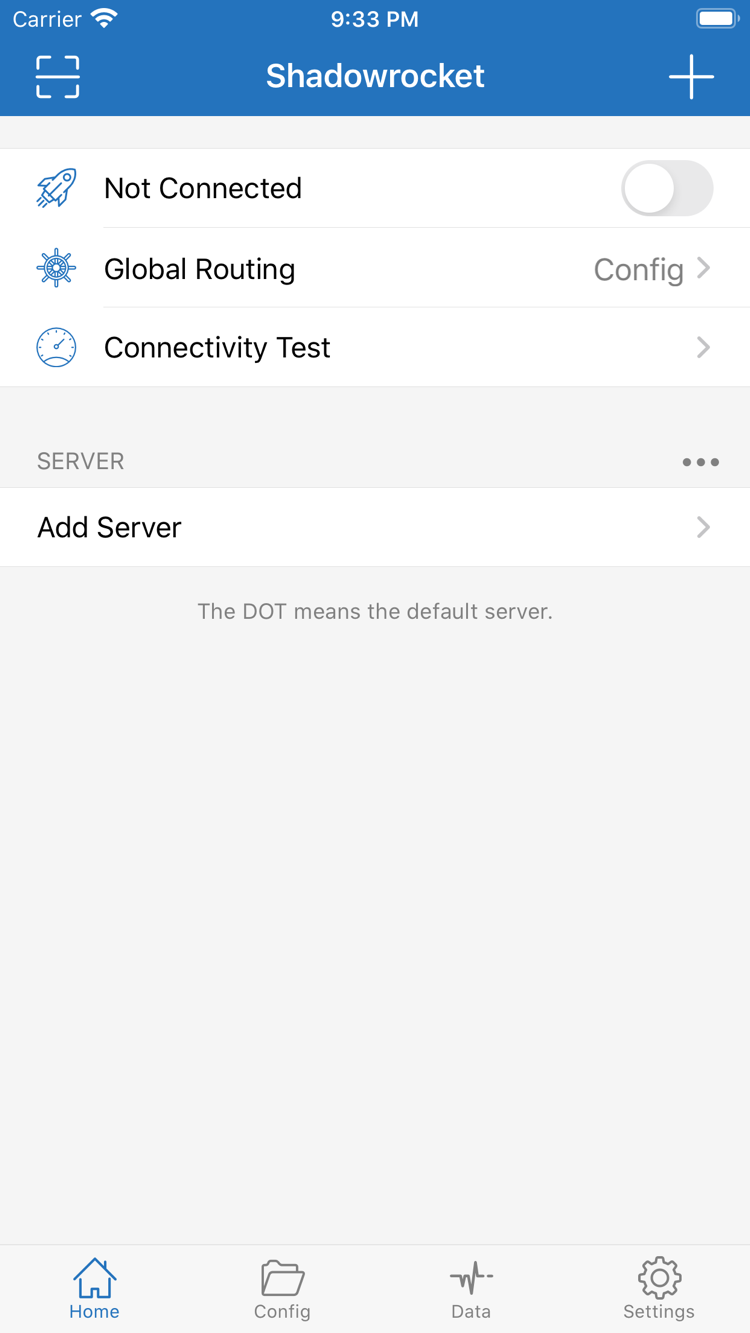
After opening Shadowrocket, stay on Home and leave the switch at the top off for now. Check the SERVER section below. For a first setup, add your own server details here. If you have a subscription link, choose Subscribe. If you have a server address, port, protocol, and authentication details, use Add Server to enter them manually. Don’t use a regular webpage URL as a subscription link, or enter a subscription URL in the server’s Host field.
Have a Subscription Link? Choose Subscribe
On Home, tap the add button in the upper-right corner or tap Add Server in the list. On the add screen, choose Subscribe under Type. Paste your existing full link into the URL field and give the subscription a recognizable name. Check for spaces or line breaks at either end, and make sure query parameters weren’t truncated when copying. Don’t delete parameters you don’t recognize.
After saving, return to Home and wait for the subscription to load. Check whether the corresponding group and server entries appear under SERVER. A subscription name alone doesn’t mean its servers loaded; expand the group to confirm it contains entries. If the list is empty, pause before connecting and check that the link is valid, the current network can access it, and your subscription is active. Avoid importing the same link repeatedly, as duplicate groups make servers harder to identify.
Have Details for One Server? Enter Them Field by Field
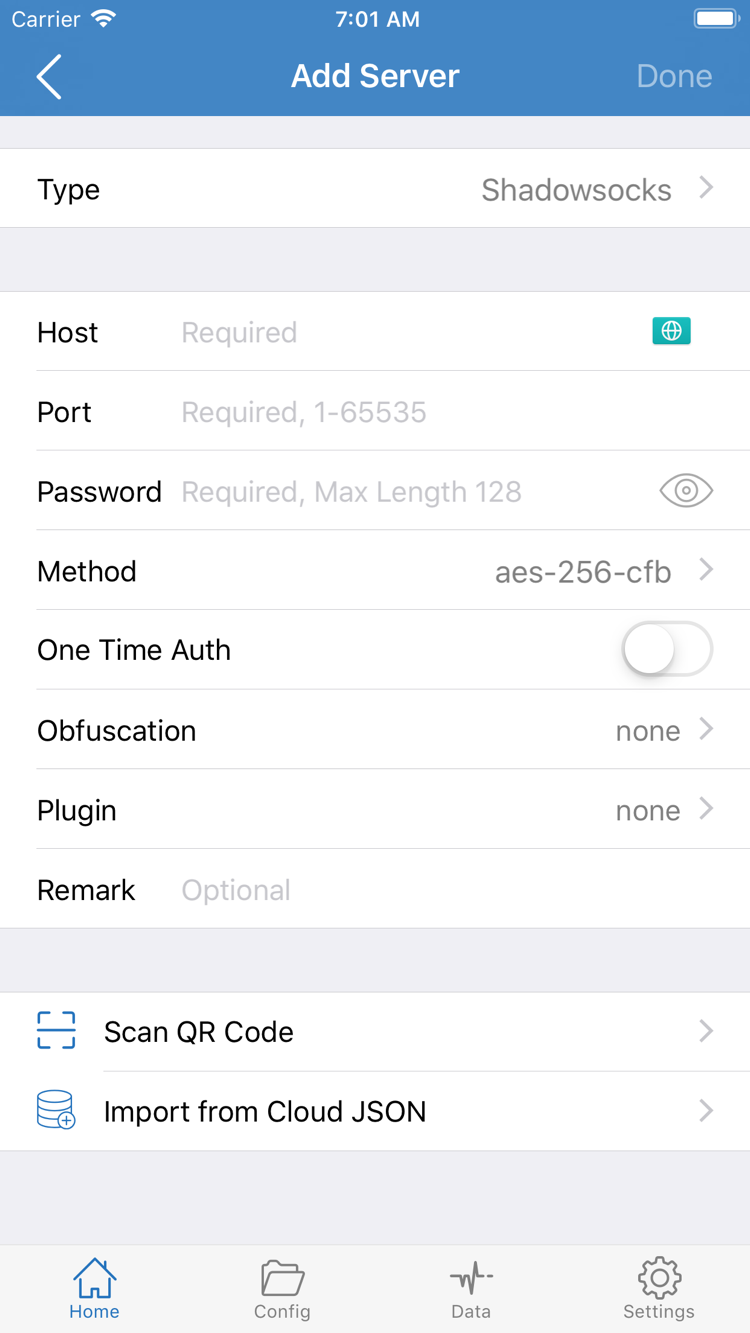
After opening Add Server, choose a Type and fill in the fields shown for that protocol. Host is the server’s domain or address; Port is its connection port. For example, with Shadowsocks, also check Password and Method. Authentication and transport fields vary by Type, so enter the details exactly as provided. Don’t switch protocols based on similar names or guess the encryption method from another server. The screenshot shows one set of fields, not a form shared by every protocol.
Review the details, save, and return to Home to find the new entry. You can import an existing QR code using Scan QR Code and grant camera access if prompted. After importing, check Type, Host, and Port as well. Import from Cloud JSON is for configurations already in that format; a regular subscription doesn’t need to be converted. Clipboard contents, QR codes, and subscription links may contain authentication details. Don’t post the full contents publicly or share them when asking for help.
You’re ready to continue when SERVER contains a selectable server entry, not just a group heading. For subscription updates, managing multiple subscriptions, and backups, see the Server Management Manual. For your first connection, keep one clearly identifiable configuration and move on to choosing a routing mode.
Step 02 · Choose How Requests Are Handled
Global Routing Modes and Rules
The server determines where the connection goes; Global Routing determines how requests are handled.
After saving the server, return to Home and tap Global Routing to check the current mode. The three common options are Config, Proxy, and Direct. First, decide what you want to do: test whether an existing server works, or use existing rules to handle different websites differently. The routing mode and server selection are separate settings. Changing the server without checking the mode may produce a different result than expected.
Config: Match Requests Against the Active Configuration
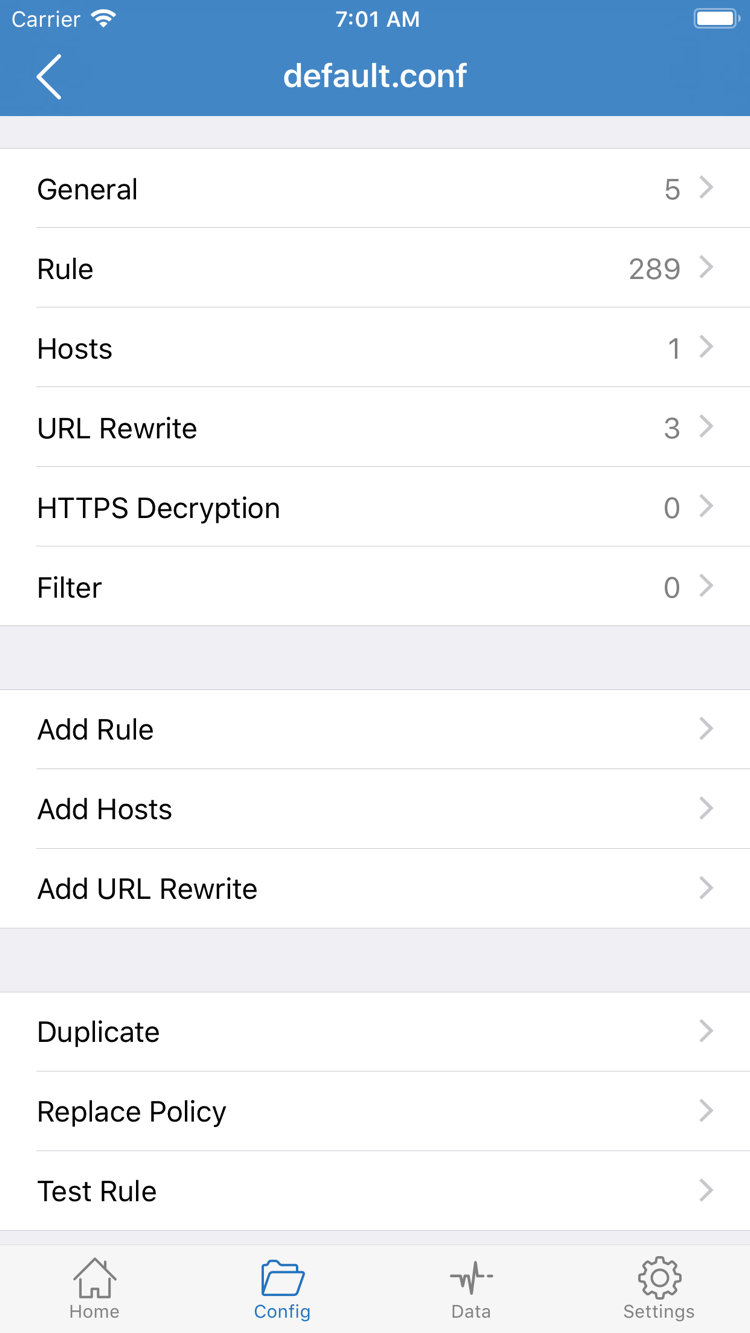
With Config selected, requests are handled according to the rules and policies in the active configuration. Open Config at the bottom and confirm that a usable configuration is available and the intended file is active. Adding a file to the list doesn’t mean it’s in use. The configuration editor includes sections such as General, Rule, Hosts, URL Rewrite, and HTTPS Decryption. For a first setup, focus on Rule. You don’t need to edit every section or enable HTTPS Decryption just to connect.
Rules are generally checked in order. Put more specific matches first and the final policy at the end. The example below illustrates how to send a specified domain suffix through PROXY and everything else through DIRECT. example.com is a teaching domain, not a server address. This works as expected only when the corresponding policies are available and the rules are correctly ordered in your configuration. Don’t replace an active configuration with the entire example before making a backup.
DOMAIN-SUFFIX,example.com,PROXY
FINAL,DIRECT
Proxy and Direct: Set a Specific Connection Path
Proxy sends requests handled by the client through a proxy path and is useful for briefly testing the selected server. It doesn’t apply the individual routing rules in Config. Direct uses a direct connection path and can’t confirm that a proxy server is working. If you’ve been testing in Direct, a website opening successfully still doesn’t prove that the server you just imported is valid.
If you have a trusted configuration with a clear purpose, choose Config and check which file is active. To isolate whether the server can connect, you can temporarily select Proxy for a test, then switch back to the intended mode. Note your original selection before making changes, and change one setting at a time. For more on routing policies and configuration management, see Features and Settings. Next, establish the system connection.
Step 03 · Establish the System Connection
Home Turn On the Connection
Check the selected server and routing mode before approving the first system VPN configuration prompt.
Return to Home and select the server you want to use under SERVER. Make sure the selection indicator is next to the intended entry, not another server with the same name. If your subscription includes multiple servers, use just one for the first test so you don’t change the server and routing mode at the same time while troubleshooting. Then check Global Routing again to confirm the selected mode matches your choice in the previous step.
Tap the connection switch at the top of Home. The first time you connect, the system will ask whether to allow a VPN configuration to be added. Review the prompt, approve it, and complete any passcode or biometric authentication required by your device. This allows the client to create a system network connection configuration; it doesn’t sign you in to a subscription or fill in missing server authentication details. The system prompt should not ask you to provide your subscription password to this site.
After approving the system prompt, return to Shadowrocket and check whether the Not Connected status at the top has changed and the switch remains on. If the switch turns off immediately, first confirm that system authorization is complete and the selected server has all required fields, then follow the troubleshooting steps on this page. If you previously dismissed the prompt, try connecting again. If the issue persists, check the corresponding configuration in your device’s VPN settings. The exact menu name may vary by system version.
The status at the top shows whether the system tunnel is established; it doesn’t prove that a particular website is accessible. Server authentication, DNS resolution, rule selection, or the destination site’s response may still fail when you make a request. Even if the connection status looks normal, continue with Connectivity Test and a real webpage test. Don’t stop at a change in the switch’s appearance.
During your first test, keep the app in the foreground and avoid adding automatic connection conditions such as On Demand. To pause, return to Home and turn off the connection switch. After changing key settings, reconnect if needed and test again. If another VPN configuration is active on your device, check which one is actually in use so you don’t mistake its status for the result of this setup.
Step 04 · Check the Results Against Expectations
Connectivity Test Verify It Works
Check server reachability, system connection status, and request routing separately; they are not the same thing.
Once connected, tap Connectivity Test on Home and check whether it completes. The result can help assess connectivity between the selected server and the test destination, but its meaning depends on the Test Method selected in Settings. Success with one test only means that the test received a response under those conditions; it doesn’t prove that every website or transport method will work.
Next, open a browser and visit a website you intend to use. Load a new page rather than relying on cached content. Test one destination first, then check others individually. If the page opens but images, sign-in, or video resources fail, note exactly which parts are affected. A webpage may request resources from multiple domains, so a successful main page doesn’t mean every resource used the same policy.
With Config Selected, Check the Routing Results
Choose one destination that should use PROXY under your current rules and another that should use DIRECT, then visit each one. Review the available request logs to see the actual domain, matched rule, and final policy. Don’t judge the route by page load speed alone: caching, destination load, and your current network can all affect the result. A lower test time doesn’t necessarily mean webpages will load faster.
If both destinations are accessible but use the opposite routes from what you expected, first check that Global Routing is still set to Config, the correct file is active, and no earlier rule matches the request. In the example, FINAL,DIRECT handles requests that don’t match an earlier rule. If a specified website doesn’t match one of the preceding rules, it may be handled by the final policy. This points to a rule issue, not necessarily a server failure.
To make the result reproducible, note the network, server entry, and Global Routing mode you used. If results change when switching between Wi-Fi and cellular, test the same destination again rather than changing the server and configuration at the same time. This makes it easier to tell whether the difference comes from network conditions or client settings.
Step 05 · Troubleshoot Based on Where It Fails
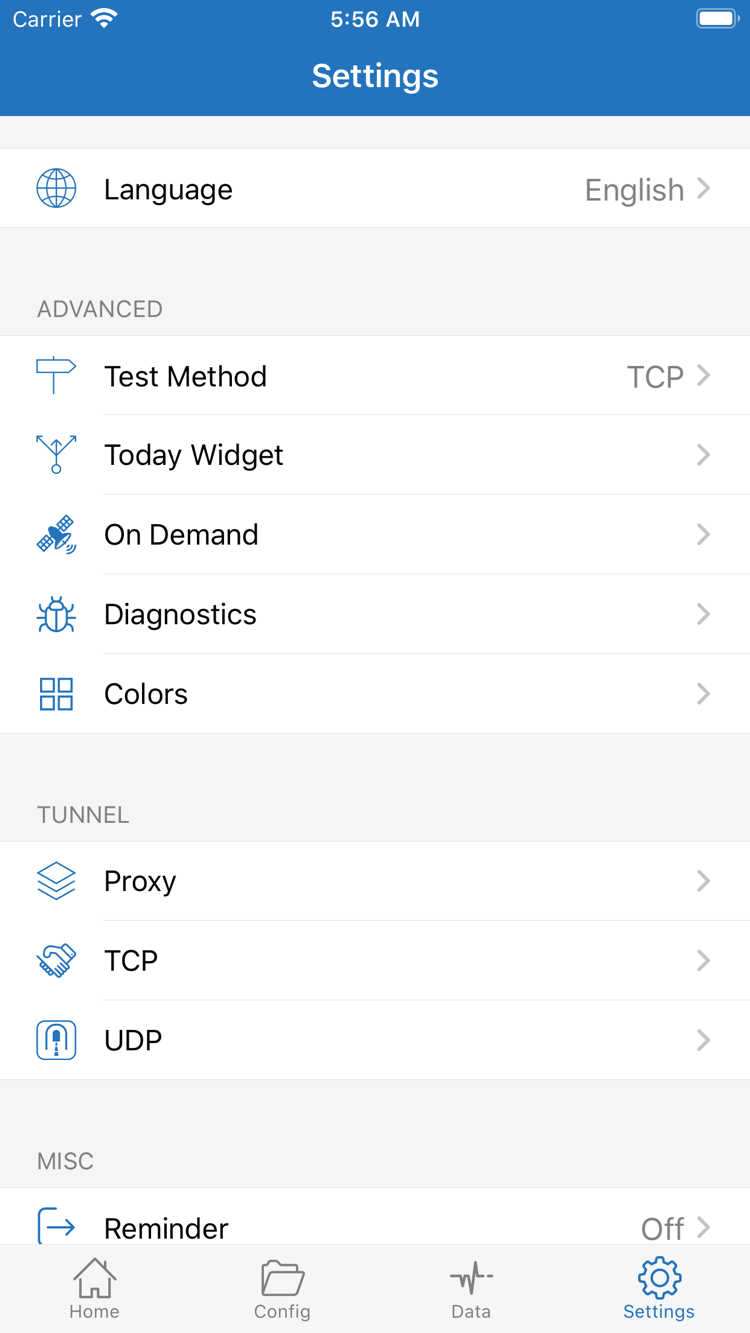
Settings / Diagnostics Settings and Troubleshooting
Identify which layer is failing, then adjust the relevant setting. Change one thing at a time and repeat the same test.
No Server Entries After Import
Return to the corresponding Subscribe entry and check the full URL. Make sure you didn’t copy explanatory text, omit parameters, or include a line break. Confirm that the current network can access the subscription, and ask the provider of your existing service to verify its status and format. Updating a subscription rereads the remote contents; it won’t fix authentication details that are already invalid. Keep the original entry and any necessary backup before making corrections. Repeatedly deleting and recreating it won’t reveal the cause.
Entries Appear, but the Test Fails
Compare the result with another server you already have to see whether one entry or all entries are failing. For manually entered servers, check Type, Host, Port, Password, Method, and any transport or authentication fields required by the protocol. Distinguish the numeric port from the address; don’t paste an entire share link with a protocol prefix into Host. If all entries fail, check whether the device’s network works normally, then compare another network. Don’t modify every server at once.
Open Settings and check Test Method to see which test is selected. Different test methods change what the result means, so compare it with actual requests rather than switching methods repeatedly until a number appears. If you see an authentication failure or connection timeout, note the exact error and when it occurs, then check the relevant configuration. Don’t record only “can’t connect.”
Connected, but Some Websites or Background Connections Fail
Check Global Routing and the active Config, then confirm that the destination domain matches the expected rule. If switching temporarily to Proxy works but Config doesn’t, check the rules, policies, and DNS-related settings first. This comparison helps narrow down the cause; it doesn’t mean you should leave Proxy enabled. Don’t try to fix everything by enabling HTTPS Decryption at random or changing TCP and UDP settings in bulk.
In Settings, On Demand configures connection behavior triggered by specific conditions; it doesn’t improve server availability. Set it up only after a stable manual connection works. If automatic reconnection or network switching doesn’t behave as expected, check your existing On Demand conditions and test again. To investigate background battery use, compare device battery usage with actual usage periods; don’t draw conclusions from how long the switch has been on alone.
For further troubleshooting, check Diagnostics in Settings. Note the time of the error, network type, mode, and the destination that failed. Before sharing diagnostic details, remove authentication parameters from subscription URLs, passwords, and personal address information. Don’t publish your full configuration. For more answers by topic, see Troubleshooting. For subscription updates, sorting, deletion, and backups, see the Server Management Manual.